Sign in to freckle

Features & Changes


23
May 13

Don’t miss the beat with Freckle’s weekly activity reports

You’re busy creating—and time tracking is probably low on your list of priorities. At Freckle, we try to get out of your way by providing a fast-loading and friendly app to get your time entries logged quickly.

But wouldn’t it be great if Freckle comes to you instead of you having to go to Freckle?

Introducing our weekly activity reports! Punctually every Monday morning (in your local timezone!) we will deliver you a personalized weekly activity report email, showing everything you’ve logged for the previous week, including the mini-pulse!

The best thing? One click will take you to a report in Freckle, where you can edit entries or add time that you forgot to log (we’re human, after all). For your business, it’s important that you don’t miss out on logging billable time and the weekly reports will help getting you paid for your hard work!

And for admins of bigger teams, we’ll additionally send you a weekly report of all time logged by everyone for the previous week (we’re truncating emails that would get too long, but you’ll be able to get the gist of it plus review all hours via a link to a Freckle report!)

In our efforts to save you time, we’ll automatically stop sending you reports if you don’t log time for a while (so you don’t have to read these emails!), but you can also choose either not receive Freckle’s weekly time reports at all or just until you log time again.

You can also edit your report preferences in the new Notifications section under Settings & Tools in Freckle.

Look for your weekly report in your inbox!


26
Feb 13

No need for invoicing? Turn it off!

We have good news for those of you who don’t have a need create invoices (or if you roll your own invoicing), or if you need to use an external app for it (maybe because your accountants make you do it!)—Freckle now supports turning invoicing off altogether.

To turn it off, you need to be logged in as the account owner Go to admin then Settings.

To disable invoicing, uncheck the checkbox and click “Save settings”. The change will take place immediately, but you can always re-enable invoicing again.

The settings page will show you in detail what will happen and how Freckle deals with any existing invoices you may have in your account (we’ll just hide them for later, so you can restore ‘em).


4
Feb 13

Custom fonts, Markdown and PDF invoices!

With our HTML invoice customization that’s available in our small, medium and large plans, it’s easy to make your Freckle invoices extra stylish. Here’s how you do this with a font from Google Web Fonts.

First, choose the font you like of course. Here we’re picking Open Sans, and select the normal, bold and italic styles so we can have some extra fun. Next, copy the link element that’s generated for you.

Then, just paste it into your Freckle invoice customization. Be sure to replace http:// with https:// in the link element so your invoices will show correctly on all browsers. To apply the new font to the invoice and the optional report, use a CSS style rule that targets the #invoice and #invoice_report elements, and sets the font-family.

To have some extra fun, let’s try out Freckle’s new support for Markdown in the description and footer fields in your invoice. Markdown is a simple formatting language that allows you to easily add extra headlines as well as **bold** and _italic_ text to your Freckle invoice:

This even works with our new PDF downloads for invoices! Here’s an example of a Freckle-generated PDF invoice! And there you have it, amazing-looking customized invoices, and it took just a few minutes to set up!

The best thing? In a month from now, when you generate the next invoice for the client, Freckle remembers all your settings and your invoice will look gorgeous with no extra effort needed!

With our invoice customization, you can do some pretty fancy things. Check out this live example of a shared Freckle invoice!

Here’s the customization code for this invoice:


29
Jan 13

Get Paid With PayPal Integration!

We’re super excited to introduce to you the newest friend of Freckle, PayPal! Now, when you create a invoice in Freckle, you have the option to allow your client to pay via PayPal.

And since you only need to enter what you need, when you need it, it’s still just as easy to invoice your client as it was before.  All you need to do is choose the currency that’s right for you, and enter your PayPal email address in the ‘RECIPIENT EMAIL’ field.

Freckle has even generated a long list of potential currencies for you to choose from that match those supported by PayPal (not all of Freckle’s currencies are supported by PayPal, so double-check before you save the invoice!).

Just like before, you’ll get a link to share with your client.  Only now, Freckle will show you when your invoice is awaiting payment from your client, when the payment is pending and when your invoice is paid!  

You can even view a real time detailed payment log of your PayPal account during and after the transaction. And Freckle will do all the work for you, immediately changing the status of your invoice without you needing to lift a finger!

When your client receives the invoice, they’ll be able to pay you in a few simple steps!  When PayPal payments are enabled by you, the invoice has a ‘PAY WITH PAYPAL’ button for your client to click on.  

By clicking on the shiny new PayPal button your client will be immediately directed to their own PayPal account.  Then all they need to do is choose their method of payment, click ‘PAY’ and be on their merry way!  Note that if your client does business in another country or chooses to pay you via bank transfer or eCheck, the payment may take a few days to be completed (as usual with PayPal).

Just check the list of invoices in Freckle for the current status. If your client pays you with a credit card or via a PayPal balance, the transaction will appear almost immediately.

Of course, PayPal will always send you emails about the status of any payments.

Once the transaction is complete, you and your client will both see a fancy ‘PAID’stamp in the right hand corner of your invoice.  Go ahead, get all warm and fuzzy inside when you see that stamp, that’s what it’s there for!  

And don’t forget to download your invoice as a PDF or print it out for your records.  Cause when you create an invoice in Freckle, you’ve got options, baby!

Let us know your thoughts on what you’d like to see Freckle invoicing do–we’re constantly working on improving and tweaking what Freckle has to offer you!


8
Jan 13

New and awesome developer docs!

Nerd alert! This article is about our new developer documentation.

Want to integrate Freckle with an app of yours? You’re probably aware of our API, and now we’ve a shiny new developer website available as a guide to you!

Next to listing all the API functions and showing examples with JSON and XML (your choice!), we’ve also whipped up a fully interactive site where you can test various API calls to our API test account as well as real Freckle accounts (thanks to Hurl, here’s our fork).

The new developer site is open source and on GitHub—in case you find an issue we welcome any fixes and clarifications and additions (for example, if you have a new Freckle client library, feel free to add it via a pull request!).

We’re also working on a V2 of our API that will introduce a lot more functionality as well often-requested features (like access to the Freckle Timers). If you’ve feedback, questions or requests, please head over to the API documentation site and use the feedback & support form (or write to [email protected]!). We’d love to hear your thoughts!


20
Dec 12

Lookin’ back: the dashboard mini-pulse

You probably love the mini-pulse on your Freckle dashboard, which shows you which days you’ve worked on (and how much and on what) for the current week.

We’ve added a new feature to “look back” on the last 7 days of work—so you can quickly see if you have some more time tracking left to do for last week as well:

In true Freckle spirit, the mini-pulse automatically remembers your preference when you go back to the dashboard later, all without configuring anything. We’re looking forward to you looking back!


18
Oct 12

Take notes in the Freckle timer—introducing the scratchpad!

Ever wanted to scribble down somes notes about what you’re working on while a timer is running? Now you can, directly in the Timer window!

Once you start a timer, this convenient notes area will automatically open—just click it and take all the notes you want. Each project has its own scratchpad!

No need to click save—notes are automatically saved on the Freckle servers, so you never need to worry about losing what you wrote down. You can close the timer window, or your browser, and reopen it later (even on a different computer!)—your timers and notes will still be there!

Now when you decide it’s time to log time—the notes you took are automatically used as a suggestion for the tags and description for the entry you’re logging.

And once the entry was successfully logged, Freckle clears out the notes field and you’re ready to log more time! Easy as that!


14
Oct 12

Run reports across multiple projects!

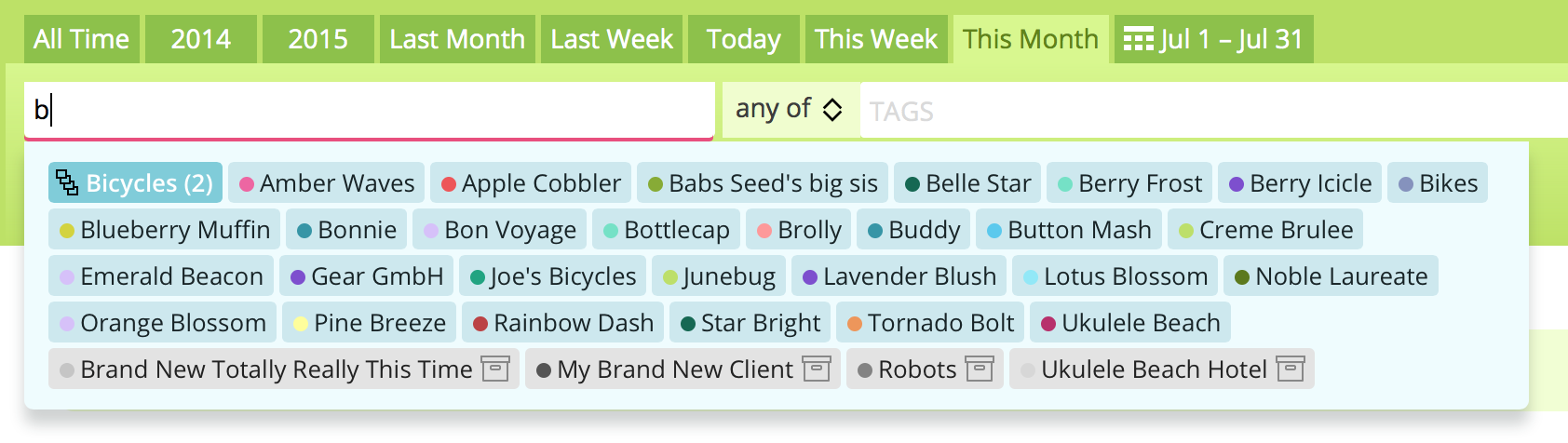
Ever wanted to run a report for a handful of projects? Or a report for all projects of a specific client? Now it’s easy to do that, with our new project selector in the green quick report box. The Quick Report Box is available on any Freckle page. Just click the green tab and you’re in business, or rather, in reports.

Just click the “CLIENTS OR PROJECTS” field and the shiny new multiple project autocompleting box will pop up. For your convenience, you can add all projects of a client by just clicking a client name (you can set the client or group name of a project in a project’s settings!). You can also select more than one client—combine as you wish! Of course, you can also combine this with a tag filter and people filters, as well as our new feature for grouping and aggregating report results.

If you are a power freckler, just start typing a client or project name, and use the up and down cursor keys and hit <tab> to select a project. The backspace key deletes the last project selected. Pressing ⏎ will instantly run the report for you!

And, once you’ve run your report, don’t forget you can save them for later, just hit the “save permanently” button and the report will always be a quick link away from the reports page.

Let us know your thoughts on what you’d like to see in your Freckle reports—we’re constantly working on more improvements and tweaks!


28
Sep 12

Get Ready to Love Running Reports

If you love running reports but wish you could see an even better breakdown of your time, then we’ve got a treat for you!  With the new report filters you can easily separate and aggregate your time entries, as well as see exactly where your team has been logging hours.

Now you can break your reports down by:

  • Time (by day, week, month or year)
  • Project (per project or aggregated)
  • Person (per person or aggregated)
  • By role (team members, freelancers or everyone)
  • By billing status (billable or invoice/payment)

Are you starting to feel like you hold all the power in the time tracking kingdom? You do now! Here are some awesome ways you can use the new report filters to understand your time better—

  • See how much time each person on your team is working daily, weekly, monthly, and yearly.
  • See how much time is being spent on each project within a set time period.
  • See how much time is being spent per person, per project within a set time period.
  • See how much time you’ve yet to invoice AND how much time has been invoiced but not paid.

Check out this video to see how easy and exciting running reports will be when you filter like a pro. (Apologies for the sound. My microphone wasn’t correctly set up.)

Now go ahead and dive deeper into the hidden treasures of report filters!  By clicking on the time frame you’ve set for yourself, you can pick and choose what to focus your attention on.  For example, maybe you want to see the paid time logged last week by your freelancers.  No problem!  Just set your filters and take off running.
Frecklers be warned.  Once you start filtering your reports, you’ll never stop.  You haven’t had this much fun since recess!


25
Sep 12

No More Scrolling Through Months-the Quick Date Calendar!

Tired of scrolling through months and months to find the right date?  Now you don’t have to!  With the Quick Select Calendar you can easily choose the dates you need by typing them in the calendar.

The Quick Select Calendar is auto-focused when you open any calendar in Freckle, so all you need to do is start typing.  Just press enter and PRESTO you’re ready to go in seconds!

Use the new calendar widget here, there, and everywhere.

  • When logging time in the past
  • When running a report
  • When editing an entry
  • When marking hours invoiced outside of Freckle
  • When creating an invoice

Here’s how the savvy Quick Select Calendar can save you time:

  • Enter “Friday”, and it selects last Friday
  • Enter “Dec 25″, and it selects last Christmas
  • Enter “9/12″, and it selects September 12th
  • Enter “September 8″ or “Sept 8″ and it selects September 8th
  • Enter “3/11/11″, and it selects March 3rd, 2011
  • Enter “10.9″, and it selects September 10th for European folks

Time trackers, meet your new best friend! Play around with the calendar and see how easy it is to find your time!